How to Log In to an IPTV Player
A step-by-step look at entering Xtream or M3U credentials into an IPTV player, plus what to do when login fails.
ListXtream EditorialUpdated Aug 20265 min read
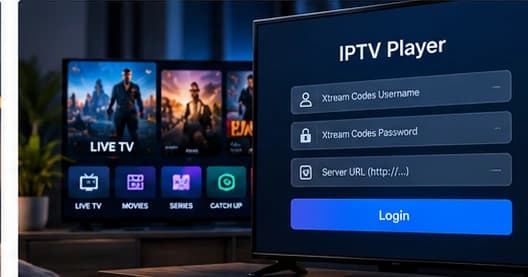
Logging into an IPTV player is usually a two-minute job, but the exact fields and their names vary from app to app. This guide walks through the common flow so you can recognise what you are looking at no matter which player you use.
Open the player and find login
- Launch the player app on your device.
- Open settings or the profile menu.
- Look for an option labelled Add Playlist, Add User, Login, or similar.
Choose your connection type
The app will ask which kind of connection you want. This is where you pick between Xtream API and M3U (playlist). If you are not sure, your provider's setup sheet normally states it clearly.
Enter your details and save
Once saved, the player will contact the server. A full channel list usually appears within a few seconds. If it does not, move on to our login troubleshooting guide.